Users
You can add administrator and non-administrator users to your account. Administrators have additional rights, such as the ability to deactivate a user.
Add a new user
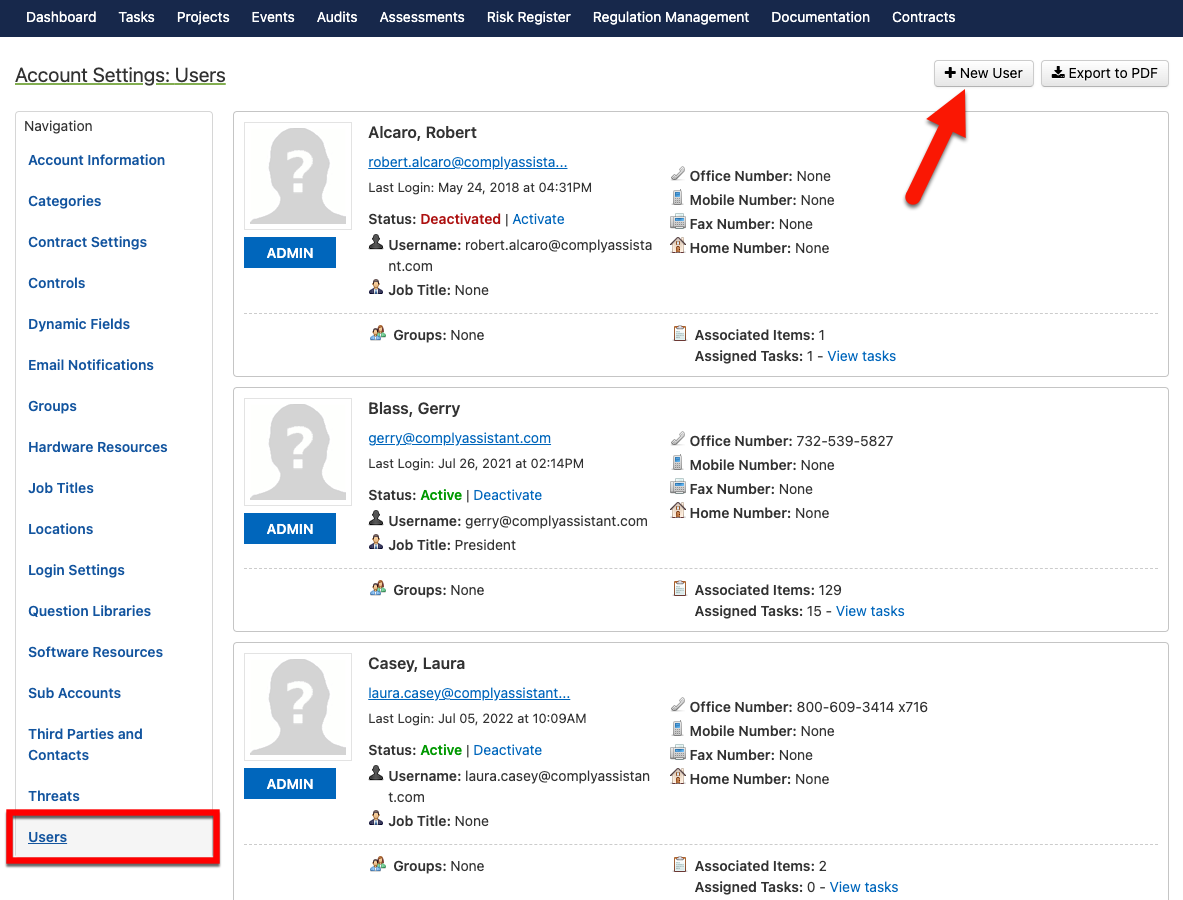
To add a new user, click Users on the left side of the page and click the + New User button in the upper-right corner of the page.
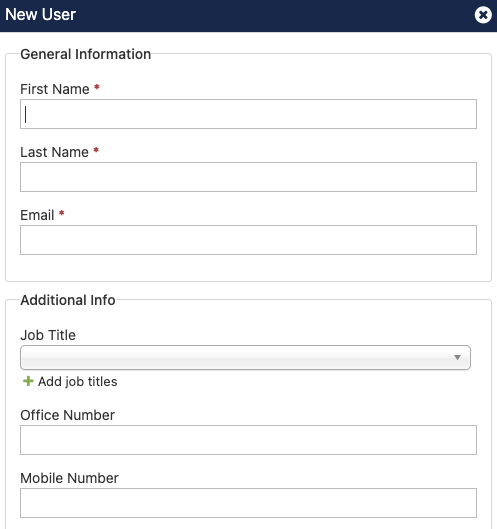
In the popup window, complete the mandatory fields and scroll to the bottom.
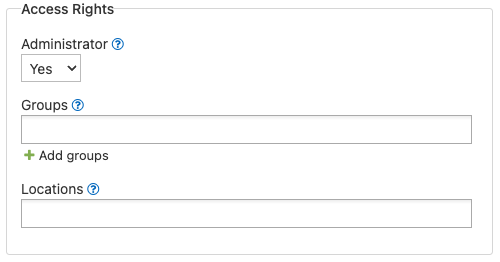
If this user is to be an administrator, choose Yes in the Administrator drop-down. Also, choose any Groups to which this user should belong. To restrict this user to specific location(s), make the necessary selections in the Locations field. When complete, click the Submit button at the bottom of the popup window.
User activation
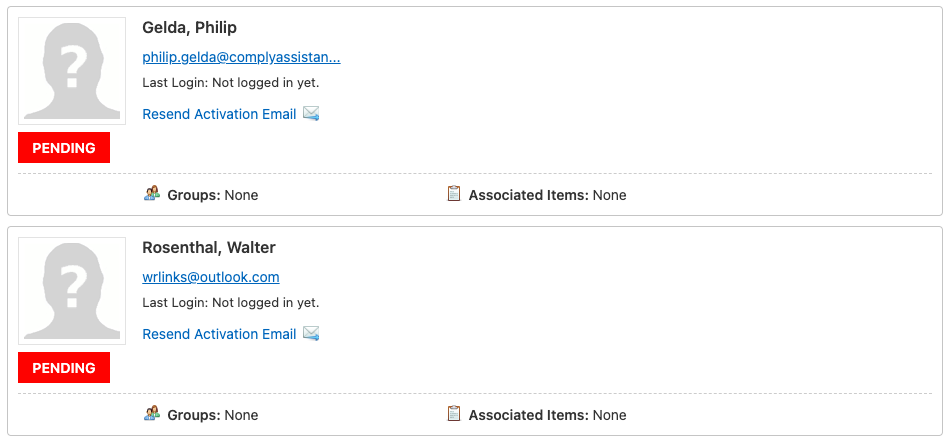
The user will receive an email message containing a link to activate the user account. If a user doesn’t respond, that user account status will change to Pending and appear at the bottom of the user list.
Deactivate a user
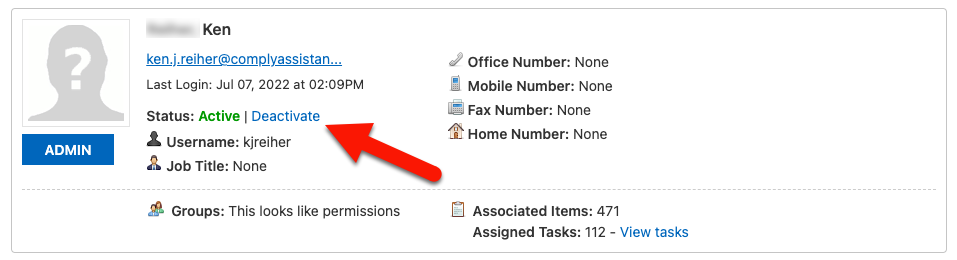
To deactivate a user, locate that user in the list and click the small Deactivate link. To reactivate the user, simply click Activate.
Edit a user
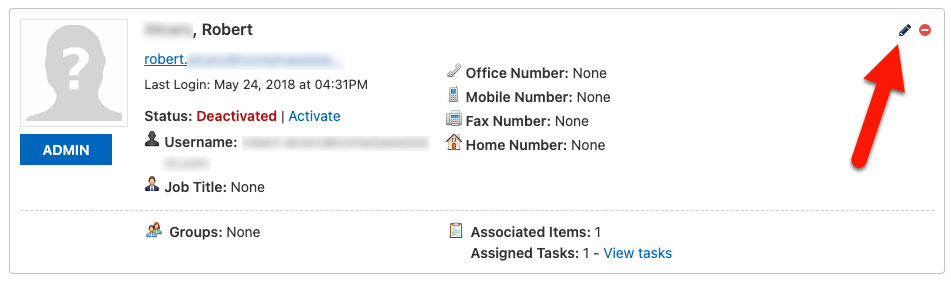
To edit a user account, hover over the user card to view a small pencil icon in the upper-right corner. Click this icon to display the User popup, in which you can make changes to the user account.